First, download the add-in folder.
Extract it.
Depending on the add-in, you’ll see at least two files:
– [The add-in file]
– User Agreement
Read the user agreement before you proceed to the next step.
Enabling Add-Ins in PowerPoint – Step 1 (PC & Mac)
One of the easiest and quickest ways to enable an addin in PowerPoint is to place the add-in file in any folder of your choice. There is no requirement for a specific location, so you can select any folder that is convenient for you. However, it is important to ensure that you do not move the file after you have enabled it in PowerPoint. Moving the file could disrupt its functionality or require you to re-enable the add-in.
If you prefer PowerPoint’s Add-ins folder, follow the step below. If not, skip to Step 2 for PC or Mac.
Copy the add-in file to your Add-ins folder.
On Windows, you’ll find it on
[C: \Users\yourusername\AppData\Roaming\Microsoft\AddIns]
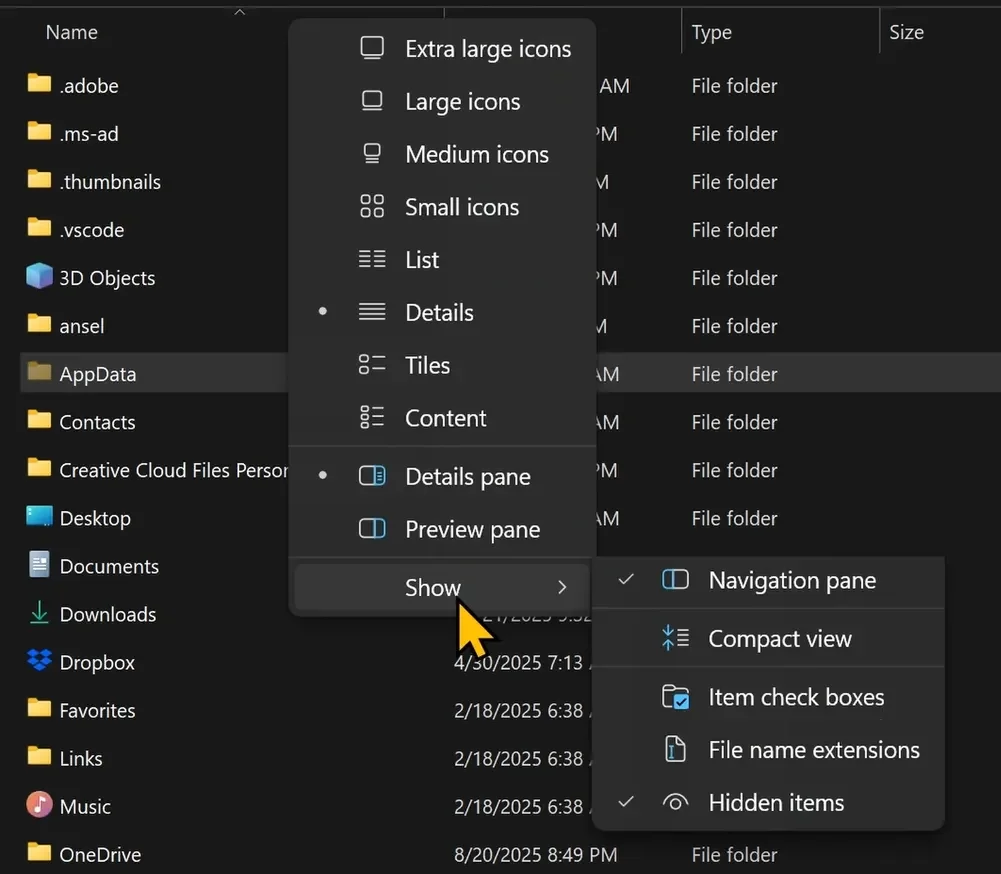
If you don’t see AppData folder, go to “View” on your Windows Explorer, “Show” and select “Hidden items”
Enabling Add-Ins in PowerPoint – Step 2 (PC)
Open PowerPoint.
We need to turn on a few switches before your add-in can do its thing.
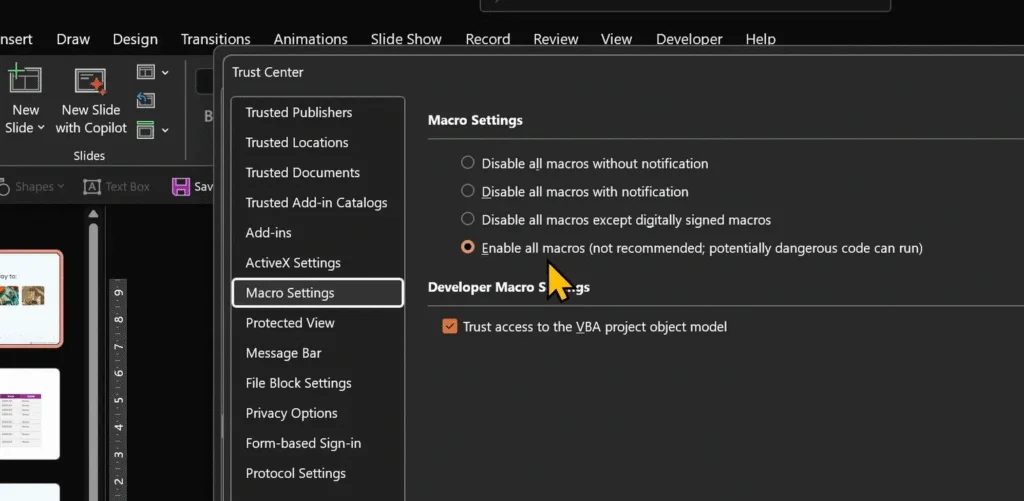
File → Options → Trust Center → Trust Center Settings.
Open Macro Settings.
Select Enable all macros.
Check Trust access to the VBA project.
Click OK.
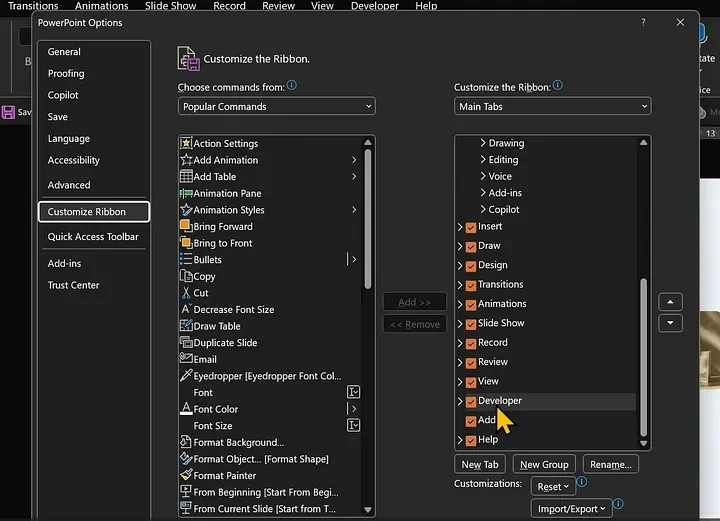
Now hop over to Customize Ribbon.
Make sure Developer is turned on.
Click OK to return to PowerPoint.
Nice. Your workspace is ready.
Almost.
Enabling Add-Ins in PowerPoint – Step 3 (PC)
Go to Developer tab.
Open PowerPoint Add-ins.
Choose Add New.
Find [the add-in you downloaded].
Select the file.
Click OK.
The add-in loads.
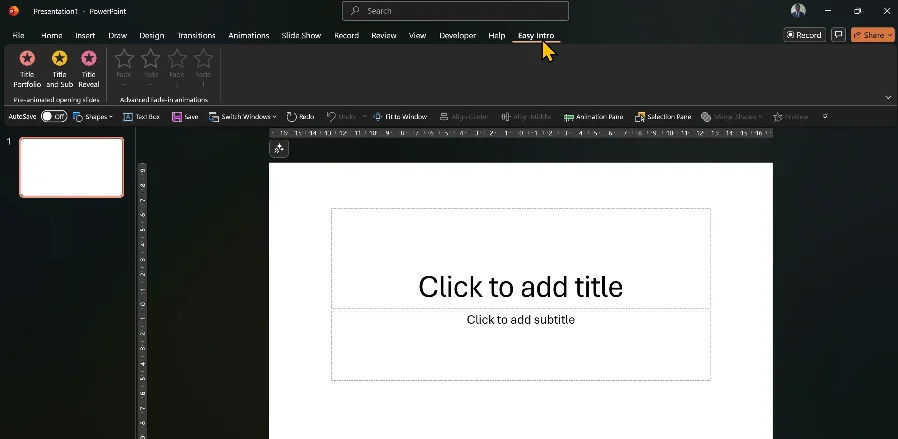
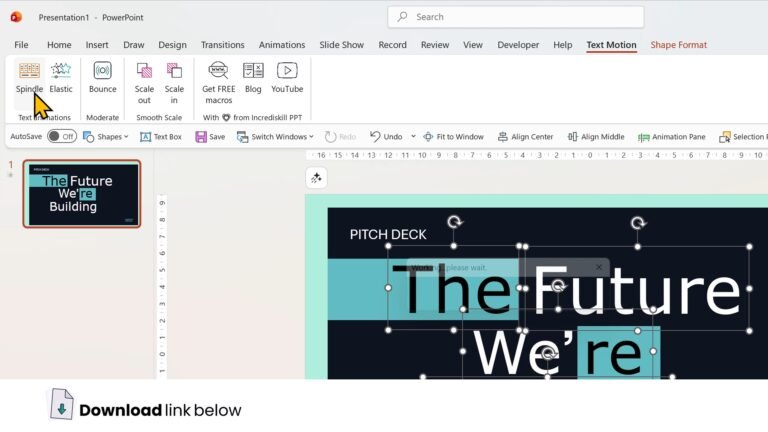
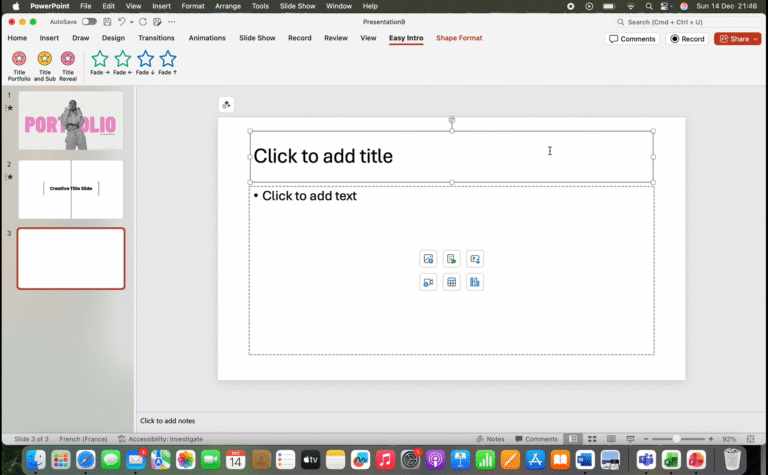
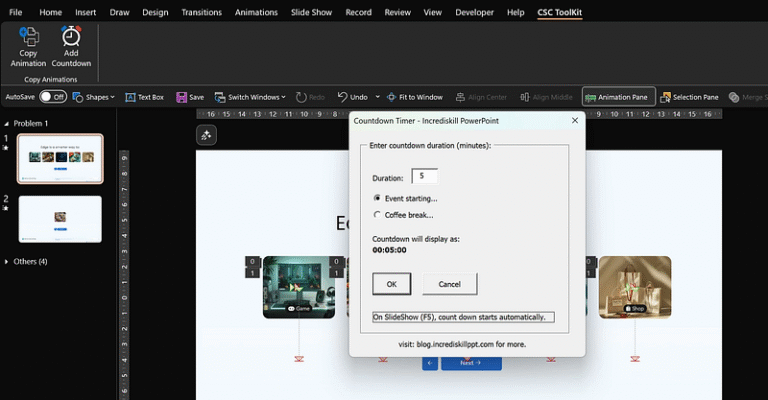
A fresh new tab, **Easy Intro** or [the add-in you downloaded], appears like a new tool dropping onto your desk.
Close the Add-ins window.
Enabling Add-Ins in PowerPoint – Step 1 (Mac)
On Mac:
Copy the add-in
Open Go to Folder and search:
~/Users/[your_username]/Library/Group Containers/UBF8T346G9.Office/User Content/Add-ins
Paste the file
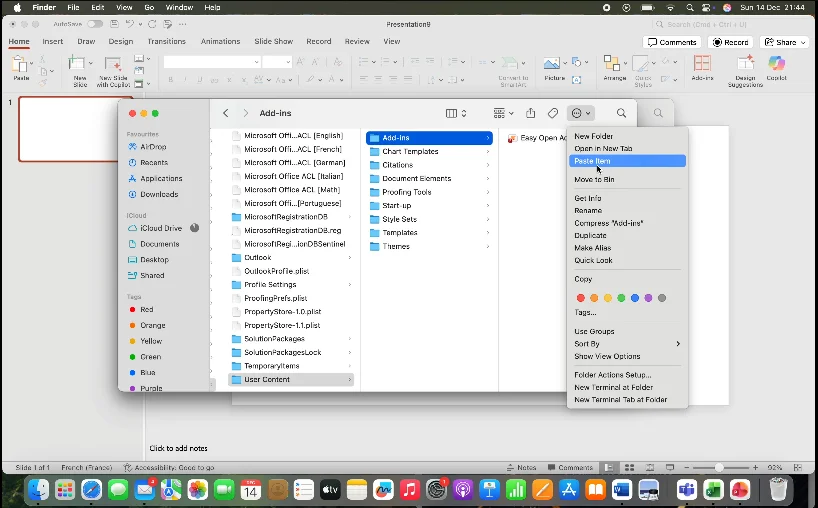
Enabling Add-Ins in PowerPoint – Step 2 (Mac)
Open PowerPoint
Tools => PowerPoint Add-ins…
Click the + icon
Find your Add-ins folder, select [the add-in you downloaded] and click Open
Select “Enable Macros“
Click “Turn Off” when asked “Do you want to turn off macro virus protection?“
Click OK to finish
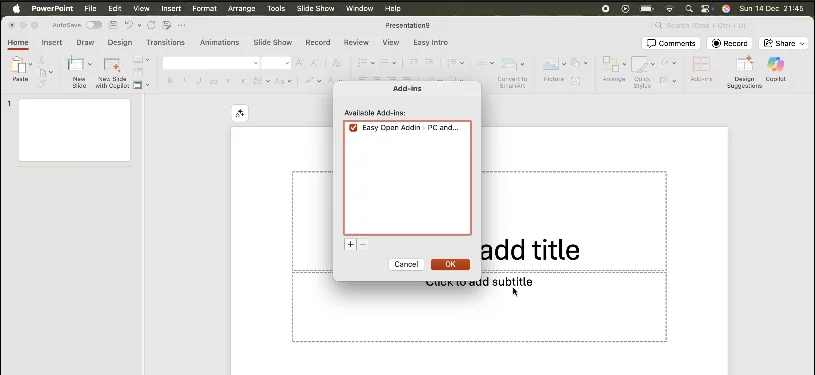
And just like that, everything’s set up.
You’re ready to start creating.