Let me show you four solutions I have created to fix four annoying problems that PowerPoint users face every single day.
Download CSC Toolkit
- Prefer video? Watch here: 4 FREE Time-Saving PowerPoint Toolkit
- Want to follow along? Jump to How to Set up CSC Toolkit, and come back when you are done
Problem 1: Copy animations — Without Losing the Originals
Let’s say you have a slide with five images, and you want to apply the same animations to them.
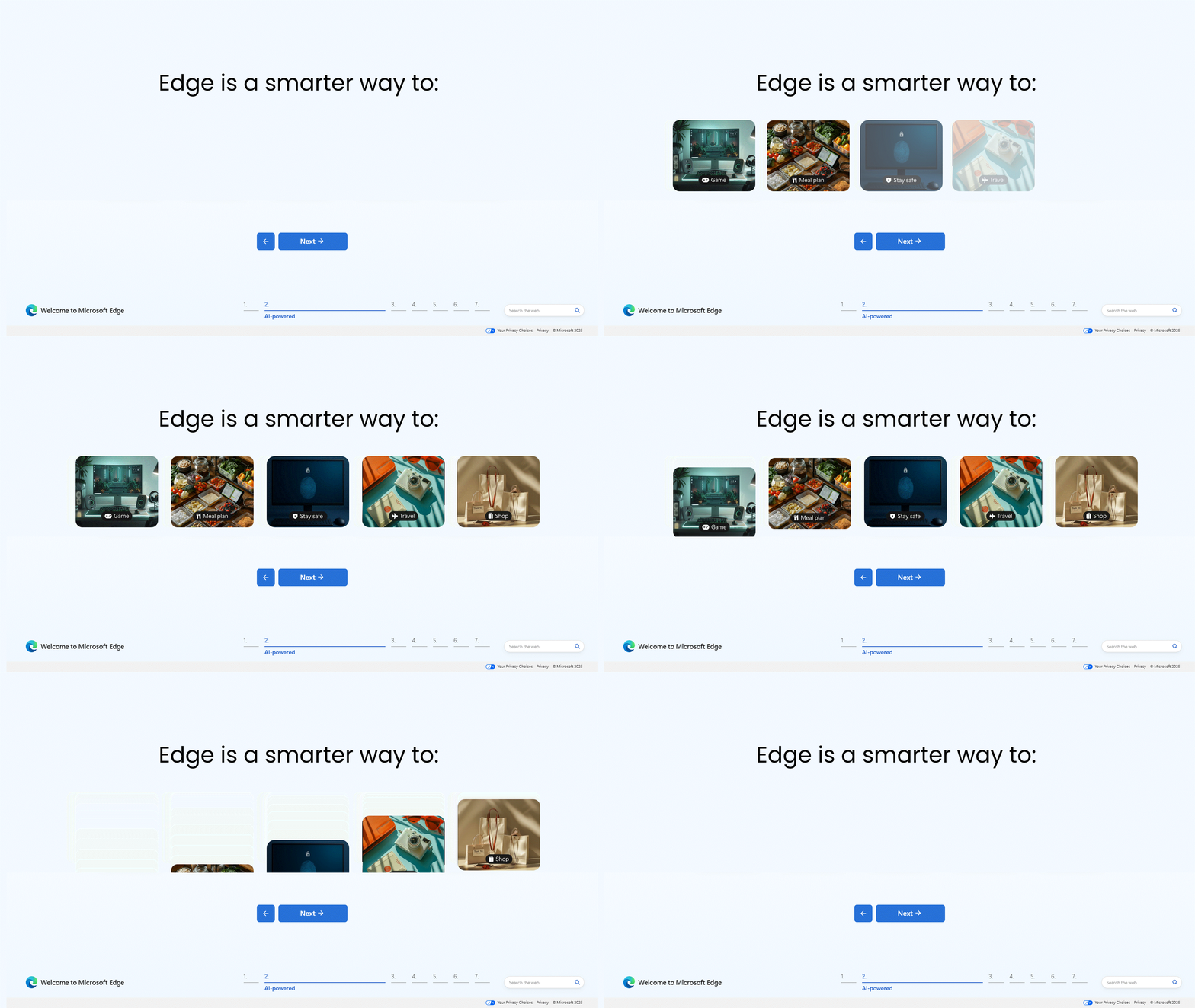
So you start with the first one.
– Add your animations,
– Set the timing and other animation effects.
Then use Animation Painter

to copy the animations and apply them to the second, third, fourth and fifth images.
So far so good, right?
But, what if you want to add new animations to them, so that they can slide out? For example, this image (on another slide) has slide-out animations and I want to copy and apply them to the other 5 images.
Now, if you say “I can use Animation Painter again”, then you are wrong because
– if I select the image,
– click on Animation Painter,
– move back to slide 1 and apply the animations to the other five images.
The original animations on the images are gone. The screenshots below show animations on each image before and after applying slide-out animation.
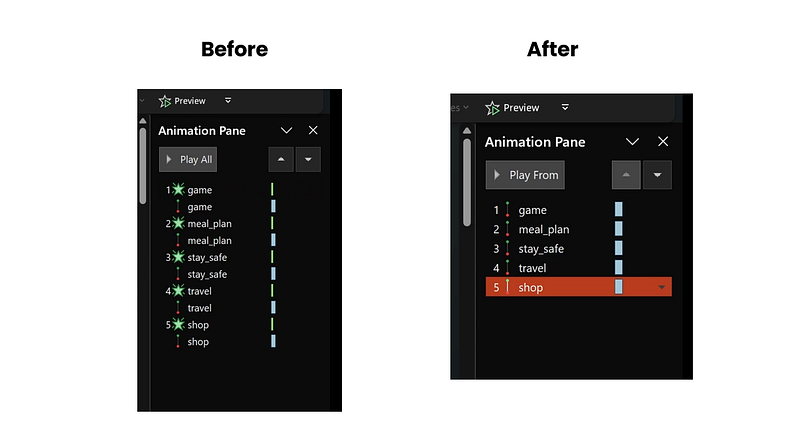
And that my friend, is a limitation in PowerPoint, but don’t worry, I have a solution for it.
My Animations Copier can copy animations from one object to another without overwriting the original animations.
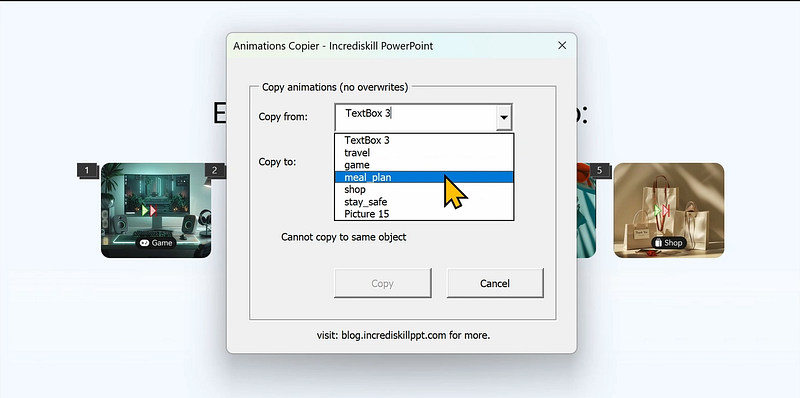
Let’s copy the slide-out animation again from the image, but this time using Animations Copier.
Note: Go to Selection Pane and name all shapes, images and objects on your slide (if you have not already) before you open Animations Copier
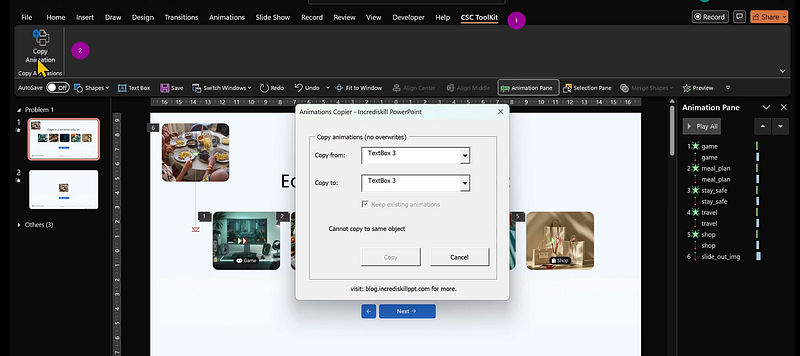
– First, select CSC Toolkit
– And click on Copy Animations
– Open the “Copy from” dropdown and select the “slide_out_img”
– In the second dropdown “Copy to”, select the destination shape or object, in this case the first image “game”
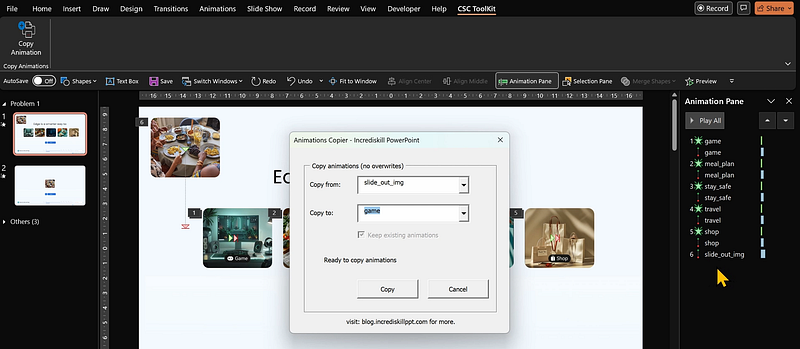
On Animations Pane, we expect the new animations to appear at the bottom, and it should not overwrite the original animations of the image.
- Click Copy
Now you’ll see the new animations, and original animations are not overwritten.
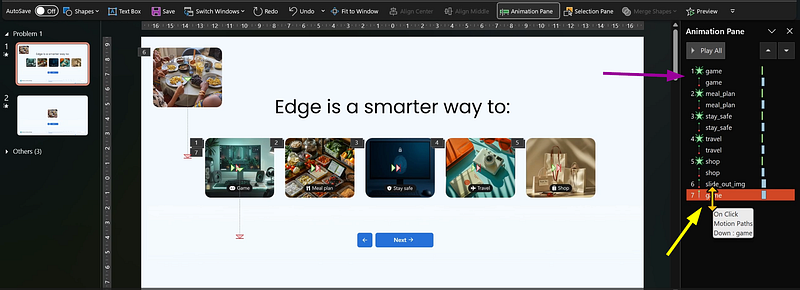
You can copy as many times as you like. No overwriting, no stress.
Right now, Animations Copier works only with Entrance and Emphasis animations. I’m still refining it to handle all animation types.
But even now, it gets the job done beautifully. No hassle.
Problem 2: Countdown slides for Events and Breaks
Speaking of hassle,
Picture this.
– You are the presenter
– everyone is seated
– and you are about to start in 5mins
Instead of announcing it again and again — “We’ll start in five!”
You can just show it using event countdown slide.

– Go to CSC Toolkit,
– Click on Add Countdown
– Type 5 for 5 minutes
– Leave “Event starting” selected
– Click OK
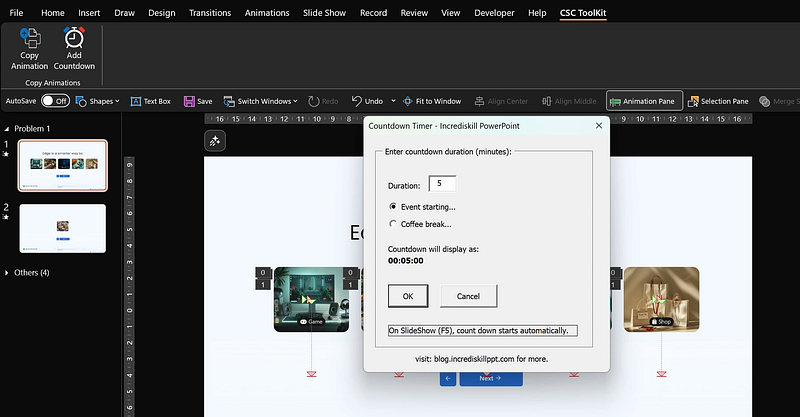
A new slide is added below your current slide. You can move it wherever you like. When you run slide show and move to the slide, the timer starts automatically.
Very convenient.
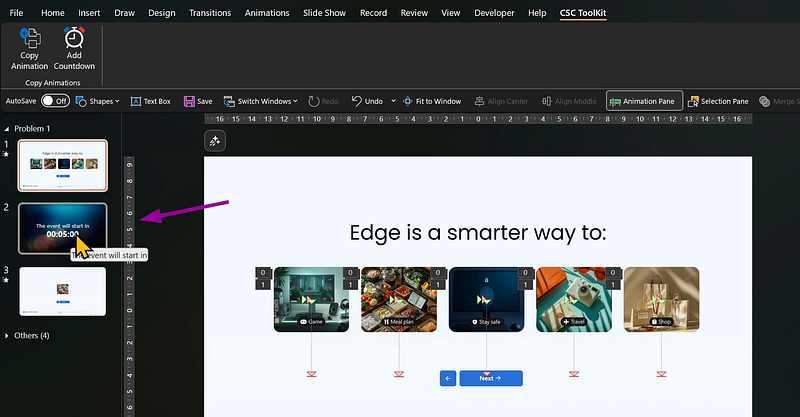

And before you go for a break,
– Go back to CSC Toolkit
– Click on Add Countdown
– Type 30 for 30 minutes break
– Select “Coffee break” and click OK.
Run slide show and move to the slide to start count down.

Problem 3: Split your tables by rows or columns
You have prepared your table in Excel, Word document or somewhere.
So you export or copy it to PowerPoint.
It’s a big table. You want to split it. Maybe by rows, maybe by columns.
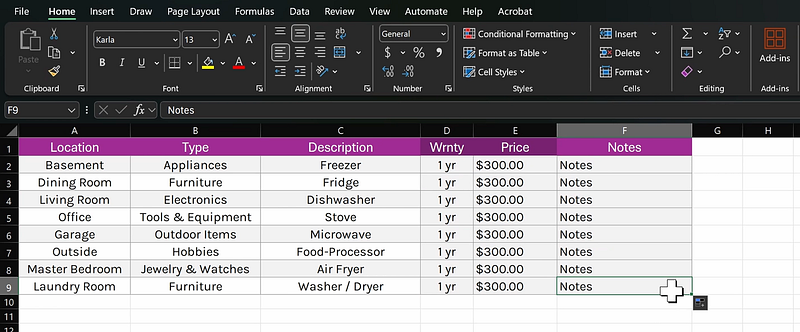
Unfortunately, PowerPoint does not have a one-click solution to split tables.
But luckily, I do.
– Select your slide with the table
– Open CSC Toolkit
– Click on Split Tables
– Select Split by Rows and click OK.
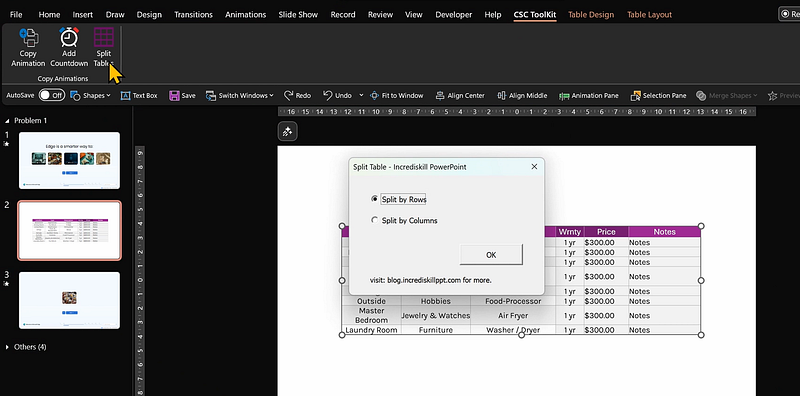
And just like that, your table is now split into rows.

Want to split by columns?
– Undo
– Open CSC Toolkit again
– Click Split Tables
– Select Split by Columns and OK to apply.
It’s simple, fast and saves time.
Problem 4: Animate Your Tables (Yes, Really!)
Now that you can split tables… this next tool animates entire tables in just four clicks.
– Go to the slide with the table you want to animate
– Open CSC Toolkit
– Click Animate Tables
– Choose Animate by Columns and click OK.
Run slide show, and your table come alive, one column at a time.

Do you prefer rows? No problem
– Just go back
– Select Animate Tables
– Click Animate by Rows and OK.
Run slide show again.
Simple, fast, saves time.
How to set up CSC Toolkit (No installation Needed)
First, download CSC Toolkit. It’s free.
Once downloaded, extract the folder.
Inside you will find 4 files:
– User Agreement.txt
– eventbg.png
– coffeebg.png
– CSC Toolkit.ppam
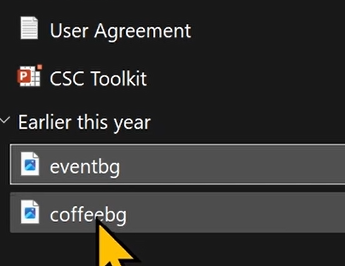
Read the User Agreement.
Then copy the entire CSC Toolkit folder to your PowerPoint Add-ins directory
On Windows, you’ll find it on
[C: /Users/yourusername/AppData/Roaming/Microsoft/AddIns]
If you don’t see AppData folder, go to “View” on your Windows Explorer, “Show” and select “Hidden items”

On Mac, you will find it on this folder path. [ /Library/Group Containers/UBF8T346G9.Office/User Content/Startup/PowerPoint/ ]
Please double check this path for Mac. I work on Windows.
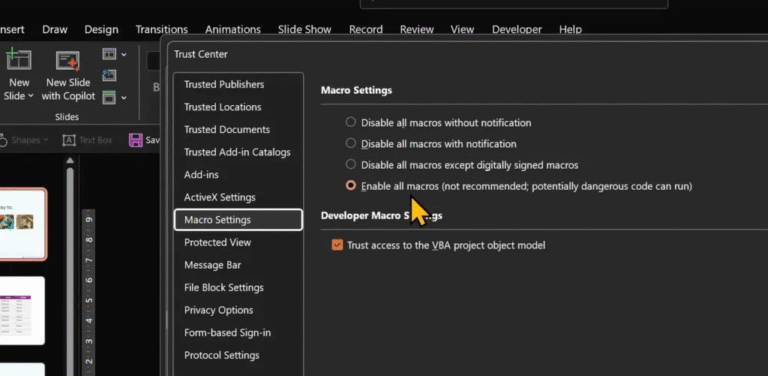
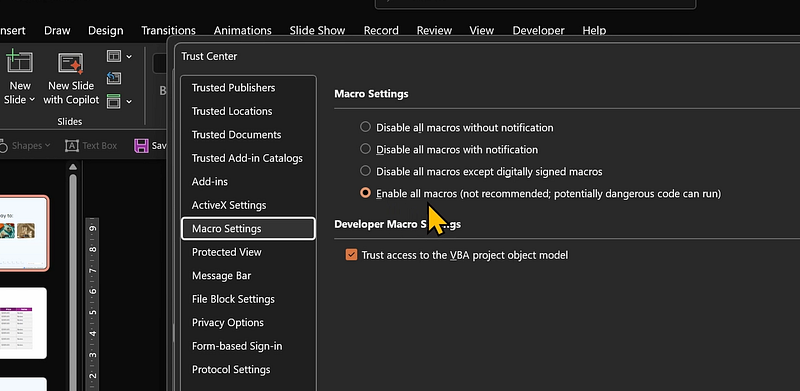
Step 2: Enable Macros
– Open PowerPoint
– File => Options => Trust Center => Trust Center Settings
– Open Macro Settings
– Select Enable all macros
– Check “Trust access to the VBA project” and click OK
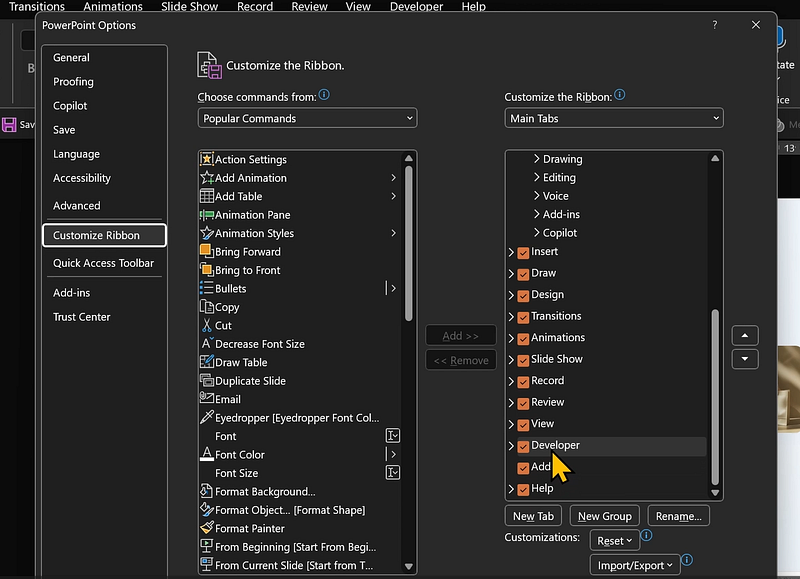
– Go to “Customize Ribbon” and make sure Developer is checked.
– Click Ok to go back to PowerPoint.
Step 3: Add the Toolkit
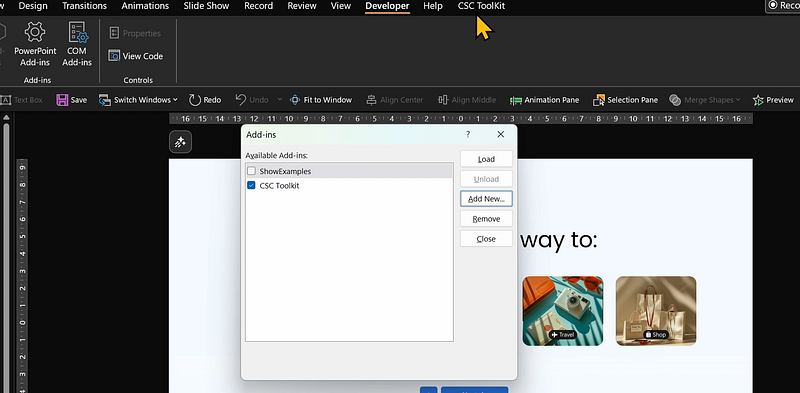
– Open Developer tab => PowerPoint Add-ins => Add New
– Open CSC Toolkit folder
– Select CSC Toolkit add-in file and click OK to open it.
– The addin is selected, and a new tab “CSC Toolkit” appears in PowerPoint.
– Close the Add-ins window.
That’s it. You are ready to go!
Final Thoughts:
PowerPoint has limits.
But with a little creativity, and a few smart tools, you can push past them.
– Copy animations without losing your work
– Create countdown slides in seconds
– Split and animate tables with ease
I hope this Toolkit makes your workday lighter, and your slides more powerful.
Try it out.
Send feedback in the comments or by email: incrediskill@gmail.com.
Let’s make it even better, together.
Until next time.
Keep creating amazing presentations.