These animations (and 5 more) were built layer by layer by combining several animations into one smooth preset. I created them for people who don’t have twenty spare minutes to wrestle with animation settings. Or for those who open the Animation Pane… and quietly close it again.

So I bundled everything into a free PowerPoint add-in called Text Motion.

In this post, I’ll walk you through each preset and show you how to apply them in seconds.
Here’s something interesting:
On average, people spend around 30 minutes adjusting animations on their slides.
Thirty.
If efficiency matters to you, or you prefer getting things done without unnecessary friction, this tool is built for you. Especially if animation isn’t your favorite playground.
Let me show you three quick examples.
Download Text Motion Add-in
- Prefer video? Watch here: PowerPoint Animations are Hard. Use These 5 Presets (PC and Mac)
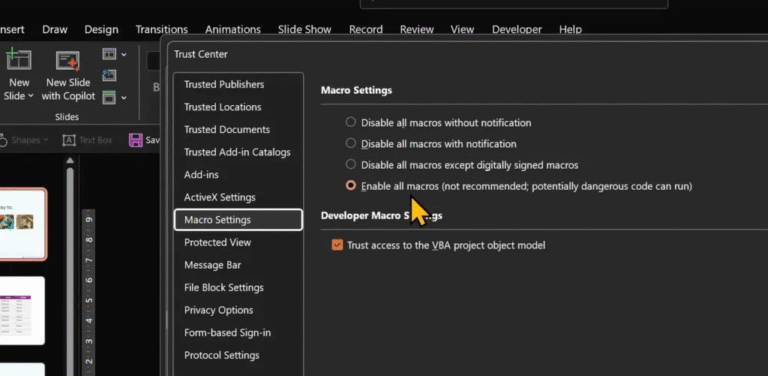
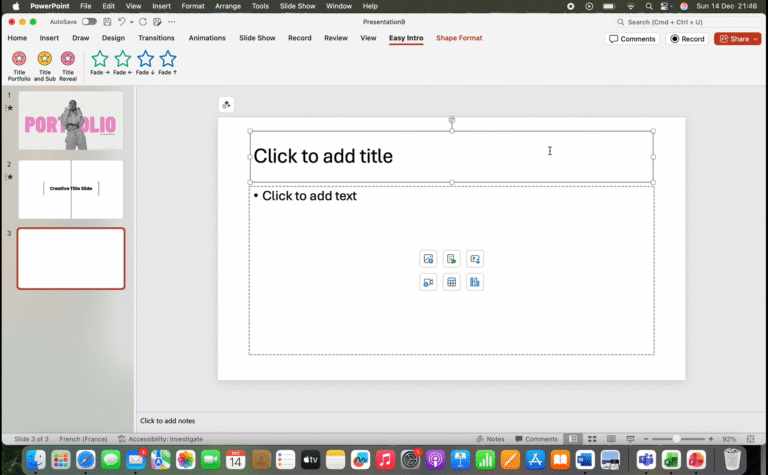
- Want to follow along? See How to Setup IncrediSkill PPT Add-ins (PC and Mac), and come back when you are done.
Example 1
This is a simple opening slide. Bold headline. A few clean design elements.
The kind of slide you’ve seen a hundred times.

Normally, this is where you pause.
You start worrying about animations.
Ten minutes later, and you’re still not sure it feels right.
Here’s what I do instead.
I select the text.
Open Text Motion. [Download link above]
Click Spindle.

(Yea, I came up with that name.) 😊
Instantly, the full animation sequence is built for you.

You can re-arrange the order if you want to.
By default, everything runs on click.
Prefer everything to start together?
Open the Animation Pane.
Select the animations.
Go to Animations → Timing → Start → With Previous.
And that’s it.

Now pause for a second.
Imagine building that from scratch.
Timing. Easing. Direction.
You could.
But you don’t have to.
Let me show you another one.
Before we get to that, “What’s the one repetitive task in PowerPoint you wish you could automate?“
Comment below and I will consider it in my future add-ins.
Example 2
Again, nothing complicated.
A clean slide. A simple list.

With slides like this, the rule is simple:
You want movement.
But not noise.
Here’s my approach.
Spindle for the subheading.
Bounce for the list items.

Repeat.
Done.
Thirty seconds.
Maybe less.

And suddenly the slide feels… finished.
Polished. Intentional.
Open the Animation Pane and you’ll see what’s happening behind the curtain:

Fourteen animation groups working together.
Fourteen.
Now imagine building those one by one.
You could easily lose several minutes here.
Instead, it’s one click.
Example 3
This next set works beautifully with images and labels.
Think:
– Meet the Team
– Products and Services
– Feature Highlights
Here’s how easy it becomes.
Select the image.
Open Text Motion.
Click Scale Out.

For the text?
Let’s choose Elastic.
Second image?
Scale In.
Label?
Elastic again.
That’s it.

Behind the scenes, multiple effects are layered and coordinated.
Smooth timing.
Balanced motion.
No chaos.
And here’s something you might not have noticed:
Bounce and Scale don’t just work on text.

You can apply them to images.
Videos.
Shapes.
I’ve done the heavy lifting.
Now it’s your turn to experiment.
Play with it.
Test it.
Make it yours.
Before we wrap up,
What repetitive PowerPoint task would you love to automate?
Tell me in the comments.
Your suggestion might shape the next add-in.
Until the next time.
Keep creating presentations that feel smooth, intentional, and just a little bit impressive.